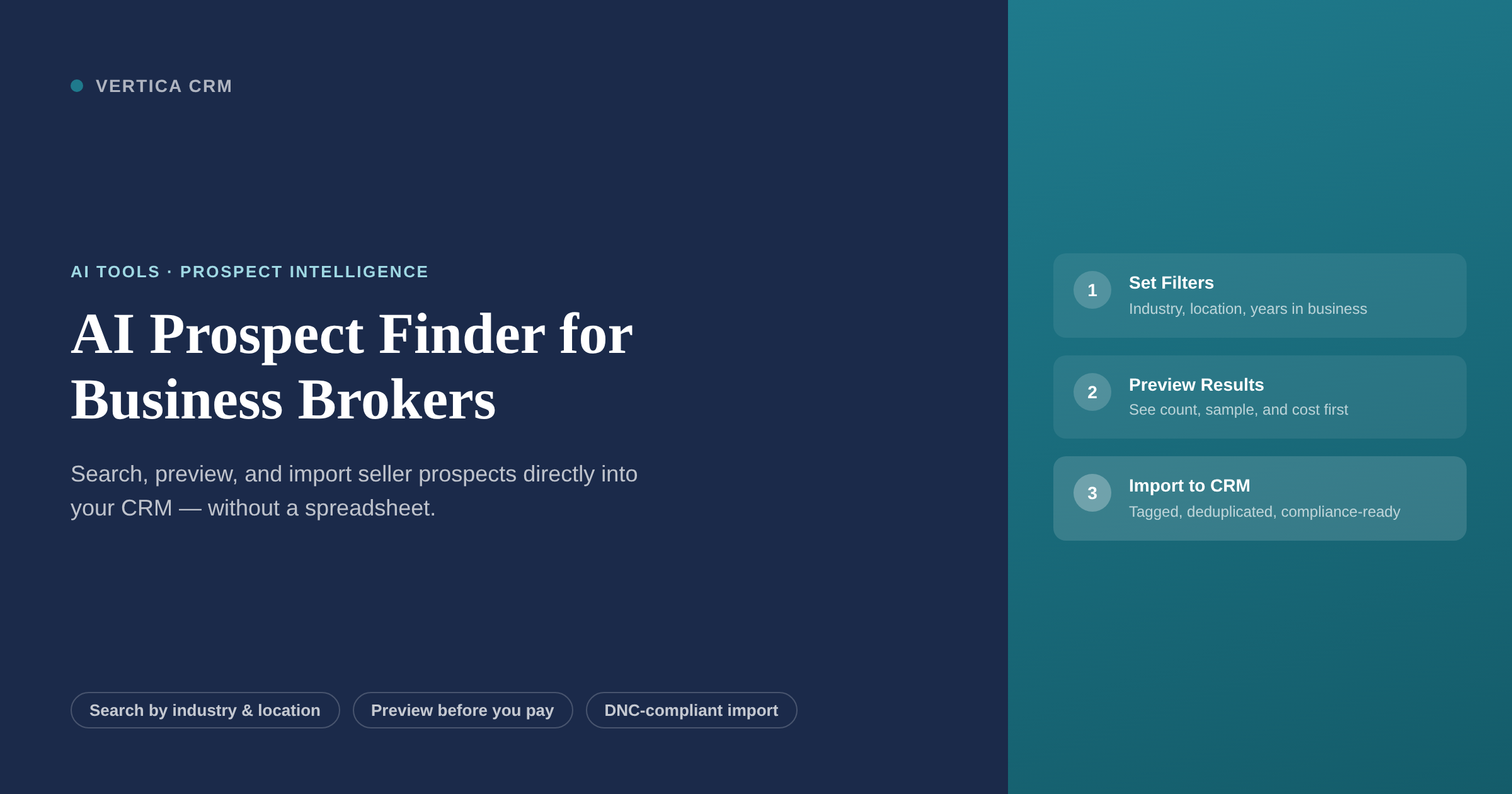
AI Tools · Prospect Intelligence
Find the Sellers Who Haven’t Called Yet: How AI Prospect Finder Works for Business Brokers
Vertica CRM’s Prospect Finder lets you search for businesses by industry, location, and size, review a sample with the expected cost before you commit, and import owner contacts directly to a marketing list.
Quick answer
AI Prospect Finder is a search screen inside Vertica CRM. You describe the businesses you want to reach (industry, location, years in business, estimated size), see how many match along with a 10-record sample and the expected cost, then import the owner contacts onto a marketing list in one click. Deduplication runs automatically, every import is tagged with the search name and date, and compliance safeguards for cold outreach are built in.
Key takeaways
- Find before you pay. Every search shows a match count, a 10-record sample, and the expected cost before a single contact is imported.
- Goes straight into your CRM. Contacts are deduplicated against your existing database and tagged with the search name and date: no spreadsheet, no manual import.
- Free mode included. Public business registries work at no extra data cost; paid connectors (Apollo and Zillow at launch, with new providers added regularly) add verified emails and revenue filters.
- Compliance built in. DNC scrub runs on every phone number; SMS is blocked until consent is recorded; CAN-SPAM elements are enforced on campaign emails automatically.
- One-click outreach. The imported list is immediately live in Vertica’s built-in email and SMS marketing tools: one click from the import screen takes you straight into a campaign, no export or re-upload required.
- Designed for business brokers. Filters map to how brokers search: industry type, territory radius, years in business, and owner title.
The pipeline problem every broker knows
Inbound works. A seller who finds you through a referral or a web search is already motivated, already looking for a broker, and far easier to close than a cold contact. The problem is that inbound alone does not give you control over when and where your deals come from.
Most active brokers also work their territory: cold calls, chamber events, and referral relationships with accountants and attorneys. That groundwork takes years and reaches only the people you already know.
The third approach, the one brokers have used for decades, is buying a list. A data vendor provides thousands of business names and phone numbers, the broker imports them into a spreadsheet or a CRM, and the team starts calling. The problems with that approach are familiar:
- The list is often six to eighteen months old before it reaches you.
- Hundreds of records are already in your CRM, so you are paying for contacts you have.
- Phone numbers are wrong, businesses have moved, owners have retired or sold.
- The list arrives as a file. Getting it into your CRM in useful shape means mapping columns, removing duplicates, and manually correcting records that don’t match your existing contact fields.
- You have no way to preview whether the list actually covers the businesses you want before you pay.
AI Prospect Finder is built around a different idea: instead of buying a list and then cleaning it, you describe the businesses you want from inside your CRM, review the results before committing, and import only the records you choose. The contacts land tagged, deduplicated, and compliance-ready, without ever touching a spreadsheet.
What is AI Prospect Finder?
AI Prospect Finder is a search screen in Vertica CRM. It lives alongside your existing contacts, marketing lists, and pipeline, and it works in three steps. The “AI” refers to the natural-language matching layer: type “dental practice” or “HVAC contractor” and Vertica maps your description to the right industry codes automatically, so you never need to look up a classification code. This AI layer is part of your Vertica subscription and runs at no additional charge, whether you search in free mode or with a paid connector.
In step one, you describe the businesses you want to reach in plain language: industry type, city or ZIP with a radius, and optionally years in business and owner title. With a paid connector, you can also filter by estimated revenue and employee count.
In step two, before anything is imported or billed, you see how many businesses match, a sample of 10 records so you can check the quality, the name of the data provider that will be used, and the expected cost. If the sample looks off, you adjust the filters and preview again. No charge runs until you decide to import.
In step three, choose how many records to import, select a marketing list, and click Import. Each business becomes a contact and company record. Duplicate records merge into existing contacts rather than creating new ones. Every imported contact is tagged with the search name and date.
The core idea
Prospect Finder does not sell you a list. It runs a search against available business data, shows you the results with the cost attached, and waits for you to decide. You only pay for what you import, you can see what you are getting first, and everything lands inside your CRM ready to work with.

Two modes are available depending on what your firm has set up. In free mode, Prospect Finder draws on public business listings, company websites, and state registries. With a paid connector, it also pulls from a data service your firm has linked to its account. Free mode is the default; no setup is required to start using it.

The search filters
Prospect Finder has eight search filters. Five work with free public sources; three require a paid data connector. Filters that need a connector show a lock icon in the interface and a note explaining how to enable them.
Business category Free
Type a plain name: “dental practice,” “HVAC contractor,” “auto body shop.” Vertica maps it to the right industry codes automatically. SIC and NAICS codes are also available as direct filter options if you prefer to use them.
Location and radius Free
City, state, ZIP, or county, with a radius in miles. You can enter multiple ZIP codes at once or search an entire county when your territory covers more than one city. The result includes only businesses with an address inside your radius.
Years in business Free
Set a minimum number of years, drawn from the business registration date. Useful for targeting owner-operated businesses that have been running long enough to have real value. A business registered fifteen years ago is a very different conversation than one registered last year.
Owner or decision-maker title Free
Filter for contacts holding the title of Owner, President, CEO, or Partner. Free sources cover the titles published on company websites and registries; paid connectors improve coverage significantly for businesses that do not publish a named officer publicly.
Annual revenue (estimated range) Paid connector
Set a revenue range, displayed as an estimate. Vertica labels all modeled revenue figures as “Est.” so it is clear these are approximations, not reported financials. Useful for filtering businesses likely to fall in your deal size range before the first call.
Employee count (estimated range) Paid connector
Set a headcount range to narrow results by business size when revenue estimates are not available for a category. Like revenue, these are modeled estimates labeled clearly in the interface.
Verified email or mobile only Paid connector
Check this box to include only businesses where the data connector has a verified owner email or mobile number on file. Useful when you are building a list specifically for email outreach or direct calling, and want to avoid records where you cannot reach anyone.
Exclude existing contacts Free, on by default
This filter is enabled by default. It cross-checks every result against your CRM contacts before displaying them, so the preview and import show only businesses you do not already have. Turn it off only if you want to find updated contact details for businesses that may already be in your database under partial information.
Gross profit and net income are not search filters. Private businesses do not publish those figures, and no data provider reports them reliably. Estimated revenue and employee count are the realistic proxies at this stage of a broker’s process.
Example searches:
- HVAC contractors within 25 miles of Tampa, in business 10 years or more
- Dental practices in three ZIP codes, owner contact only
- Manufacturers in a county with an estimated $2M to $10M in revenue (requires a paid connector)
- Auto repair shops in your state, 20 or more years in business, verified email available

The preview step: see before you buy
The preview screen is what separates Prospect Finder from buying a list. With a purchased list, you pay first and discover the quality after. With Prospect Finder, you see the results before anything is charged.
When you click Preview, Vertica runs your search criteria and returns four things:
- Match count: how many businesses in the data match your filters. Too low means loosening one; too high means adding one.
- A 10-record sample: 10 actual businesses from the result set with owner names, company names, cities, and whatever contact details the source provides. If names look familiar, check whether the existing-contacts filter is on. If the businesses look wrong, adjust the category term.
- The data provider: which provider will be used for the import, so you know where the data is coming from.
- The expected cost: an estimate of what the import will cost based on the provider’s pricing and the number of records you plan to import. The actual charge is billed by the provider directly to your firm, so there are no surprises.
You can preview as many times as you need. Each adjustment to the filters shows a fresh count and a new sample. The cost only applies when you click Import.

A common mistake to avoid
Brokers sometimes set filters that are too precise and get a preview count of under 50 for a territory where thousands of businesses exist. This usually happens when too many paid filters are stacked (revenue range + employee count + verified email) on a free-tier search with no connected data. The lock icons on paid filters are a reminder: if most of your filters require a connector and you have not connected one, the results come from public sources only and will be a fraction of what a connected search would return. (Paid connectors and how to set them up are covered in the data sources section below.)
Once the preview looks right, you choose how many records to import. You do not have to import the entire match count. If the search returns 850 matches and your budget covers 200, you set the import quantity to 200 and Vertica selects the best-matched records from the top of the result set.
What happens when you import
Clicking Import starts a process that runs in the background. When it finishes, you receive a summary and the new contacts are waiting in your CRM. Here is what happens at each step.
Deduplication
Before creating a new record, Vertica checks each imported business against your existing contacts on email, phone, and company name plus owner name. Matches merge into the existing record rather than creating a duplicate. Only empty fields are updated; fields your team has already filled in are not overwritten.
Contact and company creation
For records that do not match an existing contact, Vertica creates a new contact record for the owner and a linked company record for the business. The contact type is set to Seller prospect by default. Both records carry whatever the data source provided: company name, website, address, public phone number, owner name and title, and, with a paid connector, a verified email or mobile and estimated financials.
Marketing list assignment
Every imported contact is added to the marketing list you selected, or one you name on the spot. The list is immediately live as the starting point for outreach: a drip sequence, a calling campaign, or manual follow-up.
Tagging
Each imported contact is automatically tagged with “Prospect Finder,” the name of the search, and the date it ran. Anyone on your team can filter by that tag six months later and know exactly where those contacts came from and what criteria were used. That tag also separates cold prospects from inbound contacts and referrals in your deal source tracking.
Unverified status
Imported contacts start with an Unverified status. This clears when a broker opens the contact and reviews it, or when the contact’s email address is validated through a campaign reply or bounce check. Unverified is a signal to your team that this contact came from a data source, not an inquiry, and deserves a closer look before significant time is invested.
Import summary
When the import finishes, Vertica shows a summary: how many contacts were created as new records, how many were merged with existing contacts, how many were skipped because a matching contact already had complete information, and how many were missing an email or phone number. The summary helps you understand the yield from each search and adjust your next one.
From import to outreach in one click
Once an import finishes, the marketing list you chose is immediately live in Vertica’s built-in email and SMS marketing tools. One button from the import confirmation screen takes you directly into a campaign with that list already loaded. Select a template and send. No export, no re-upload, no switching tools. If your firm uses the Dynamic Listing List tool (Vertica’s on-demand listing summary builder), you can generate a formatted summary of active listings that match your search criteria, giving you a ready-made first message for the entire list you just created.

Free mode vs. paid connectors
Prospect Finder has two operating modes, and they stack: free mode runs by default for every firm with no setup. Paid connectors add better coverage, verified contacts, and size filters when a firm connects a data service it already uses or chooses to add.
Free mode (no setup required)
Draws on public business listings, company websites, state and county business registries, and news sources. Typically returns business name, website, address, public phone number, and owner name where published. Business category and location filters work in free mode; years in business draws from registry dates where available. No data cost to your firm.
Paid connectors (optional)
Adds verified owner emails and mobile numbers, estimated revenue and employee count, and much broader coverage for owner titles and company data. Revenue and employee filters become available. Cost per imported contact varies by provider and plan; the expected amount is shown on the preview screen before any import. Vertica does not mark up data costs.
How connectors work
Your firm administrator connects a provider from the Data Connections settings page. It takes a few minutes: paste in an API key from the provider, click Test Connection, and the connector is live. If your firm already has an account with a supported provider, no new signup is required: Vertica uses your existing credentials and your existing pricing directly. From that point, Prospect Finder can draw on that provider for every search your team runs.
Monthly caps per firm and per user prevent any one broker from running up an unexpected bill. A usage screen shows lookups by user and by service so your administrator can see what is being spent and by whom.
Available data connectors
| Provider | What it adds | How it connects | Approx. cost per imported contact |
|---|---|---|---|
| Apollo | Verified emails, mobile numbers, company data, revenue estimates | API key | $0.05 to $0.15 depending on plan |
| Zillow | Property and address records; identifies business-owner occupants through commercial real estate data | API key | Varies by plan; shown on preview screen |
Vertica does not resell data. Your firm signs up with and pays its chosen provider directly under that provider’s terms. New providers are added regularly; if you have a preferred provider you do not see listed, contact the Vertica team. The expected cost for your chosen provider is shown on the preview screen before any import runs.
How brokers use it in practice
Carol runs a brokerage in the Midwest with a focus on manufacturing and distribution businesses under $5 million in revenue. For years she purchased a data list each fall: about $650 for 2,200 business names. The list arrived as a spreadsheet. She and her assistant would spend the better part of three weeks importing it, removing duplicates, and calling to verify phone numbers. By the time the usable contacts were in her CRM, the list was two months old. Some owners had already sold. A few had retired. She started with 2,200. She ended with 800.
Last fall she ran her first Prospect Finder search instead.
She typed “small manufacturer” and “industrial distributor” into the category field, set a 50-mile radius around her market, and filtered for businesses with 15 or more years in operation. She previewed the results: 418 matches. The 10-record sample showed exactly the kind of businesses she targeted. She connected her Apollo account, reduced her import quantity to 200 to stay within budget, and clicked Import.
By the time she finished her morning coffee, 200 contacts were in her CRM: all tagged “Prospect Finder - Mfg Distribution Nov 2026,” none of them duplicates of her existing 1,400 clients and prospects, all with public phone numbers and 73 of them with verified emails from Apollo. From the import confirmation screen she added the list to a four-email sequence in one click. Her assistant started calling the contacts without verified emails the following Monday.
“I’ve bought lists before. This was completely different. I knew exactly what I was getting before I paid for it, and it was already in my CRM. No spreadsheet, no manual import, no three weeks of cleanup.”
Carol, Vertica CRM broker
What Carol did in one morning used to take her three weeks. And unlike a purchased list, the contacts she imported were deduplicated against everything she already had, tagged for compliance, and ready for outreach the same day.
Six ways brokers use Prospect Finder
- Building a territory list from scratch. A broker entering a new market or expanding to a new geography can run a search before making a single call. The result is a starting list of businesses in the right industry and size range, in the right location, with the owner’s contact information.
- Finding seller prospects in a buyer’s target industry. A serious buyer tells you they want to acquire a plumbing supply distributor in the Southeast. You search for plumbing supply distributors in that region, in business 10 or more years, and reach out to owners before anyone else does. The buyer’s criteria become your search criteria.
- Replenishing a territory that has gone quiet. When inbound slows, Prospect Finder adds a fresh batch of targeted contacts without waiting for referrals.
- Refreshing stale records with current contact details. Existing contacts in your database may have outdated phone numbers or missing emails. Turn off the “Exclude existing contacts” filter and run the same search you would use to find new contacts in that industry. You are not adding new contacts here but refreshing existing ones: Vertica recognizes matching records by name, phone, or email and updates only the empty fields, filling gaps without overwriting what your team has already entered.
- Running industry-specific prospecting campaigns. Build separate lists for different industries, each tagged with its own search name and date, and run them through separate drip sequences. Each list maintains its own history so you can track response rates by industry and focus on what works.
- Turning a search into a same-day campaign with a matching listing list. You set your criteria in Prospect Finder (restaurant owners in New Jersey with an estimated revenue of $1 million or more, for example), click Import, and the list is in your CRM. From the import confirmation screen, one click opens your email marketing module with that list already loaded. If your firm has restaurant listings in that state, the Dynamic Listing List tool generates a formatted summary of those listings on demand: a ready-made first message that connects what the prospect owns to what their peers are currently selling for. The same set of parameters that defined your search becomes the outreach you send.
Compliance and responsible outreach
Prospecting from a data source does not exempt you from the rules that govern cold outreach. Prospect Finder includes several safeguards so that the contacts you import are ready for responsible outreach before the first message is sent.
DNC scrub
Every phone number imported through Prospect Finder is checked against the National Do Not Call Registry and your firm’s internal suppression list before the record is created. Numbers flagged by either list are imported as contact records but marked to block phone outreach, so a broker who calls from their CRM sees the restriction. Phone numbers added manually by a broker to a contact record are not scrubbed automatically.
SMS blocked until consent is recorded
Vertica does not send SMS to any contact imported through Prospect Finder until the contact has explicitly opted in and that consent is recorded in the CRM. The opt-in can come from a web form, an inbound reply to an email, or a manual entry by a broker after a verbal confirmation.
CAN-SPAM compliance on campaign emails
When imported contacts are added to an email campaign, Vertica enforces the standard CAN-SPAM requirements: a physical mailing address in the email footer, a working unsubscribe link, and a seven-day honor period for unsubscribe requests. Contacts who unsubscribe are automatically added to your firm’s suppression list so they are excluded from future imports and campaigns.
Suppression list
Your firm’s suppression list is a central do-not-contact registry in Vertica: email unsubscribes, DNC numbers, and manually added exclusions. With the “Exclude existing contacts” filter on, suppressed contacts are excluded along with active contacts.
Cold-outreach tagging
Every contact imported through Prospect Finder is tagged “Prospect Finder” in addition to its marketing list. That tag separates cold prospects from inbound leads and referrals in your reports and signals that these contacts have not expressed interest in selling.
First-use notice
When a Vertica user runs their first Prospect Finder import, the system displays a one-time notice summarizing the outreach rules: no SMS without consent, DNC numbers are blocked, unsubscribes are honored within seven days. Users must acknowledge this notice before the import runs. The notice does not repeat on subsequent imports.
These safeguards reduce your firm’s compliance exposure, but they do not replace your own review. Laws governing cold outreach vary by state, and rules for calling business owners differ from consumer rules. If your firm has received legal guidance on outreach practices, those instructions take precedence.
What it costs
Prospect Finder is included in your Vertica CRM subscription. Free mode has no per-use charge. Paid connector costs pass through from the data provider to your firm at their published rates.
Free mode
Free mode draws on public business registries, company websites, state registration records, and other public sources. It returns business name, address, public phone number, website, and owner name where published. Business category, location, years in business, and owner title filters all work in free mode. There is no per-contact fee and no monthly limit, and Vertica does not charge for the tool itself. Prospect Finder is an AI tool: the natural-language search requires an AI connection to work. Your firm connects its own AI subscription (such as Claude), and that AI provider bills your firm directly. Vertica adds no charge on top.
Paid connector costs
When you connect a paid data provider, the cost per imported contact depends on the provider and the contact details returned. These are approximate ranges at the time of publication; check your provider’s current pricing directly:
- Apollo: approximately $0.05 to $0.15 per contact depending on your plan level
- Zillow: varies by plan; shown on the preview screen before any import
Vertica does not mark up these costs and does not bill your firm for data separately. You pay the provider directly under the terms you agreed to when you signed up.
Monthly spending caps
Your firm administrator can set monthly spending caps at two levels: a cap for the entire firm and a cap per user. When a user reaches their cap, Prospect Finder continues to work in free mode but blocks paid imports for the rest of the month. A usage screen shows how much each user has spent with each provider so your administrator can adjust caps or identify where data costs are concentrated.
The preview step as cost control
The most practical cost control is the preview screen. Before any import, Vertica shows the expected cost based on quantity and provider pricing. If the number is higher than expected, reduce the quantity, switch to free mode, or drop the paid filter. Nothing is charged until you click Import.
Vertica platform pricing
Prospect Finder is part of Vertica CRM. For current subscription pricing, contact the Vertica team at businessbrokerscrm.com/pricing.

Prospect Finder vs. buying a list
Business brokers have been buying data lists for decades. Prospect Finder is not a better list; it is a different approach. Here is how the two compare.

| Factor | Prospect Finder | Purchased list |
|---|---|---|
| How contacts arrive | Imported directly into your CRM, one contact record per business | Delivered as a spreadsheet; you import manually or hire someone to do it |
| Deduplication | Automatic: existing contacts are excluded before import by default | None: duplicates arrive with the list and require manual cleanup |
| See before you pay | Preview count, 10-record sample, and expected cost shown before you commit | You pay first; quality is unknown until the file arrives |
| Compliance tagging | DNC scrub on import; SMS blocked until consent; tagged for audit trail | No automatic compliance check; your team is responsible for DNC scrub |
| Cost structure | Free mode at no cost; paid connectors at roughly $0.05 to $0.15 per imported contact | Typically $200 to $1,000+ per list, paid in full before you know what you are getting |
| Freshness | Query runs at search time; data is as current as the provider’s last update | Age varies; lists compiled weeks or months earlier are common |
| Import volume control | You set the number; import any quantity from 1 to the full match count | You receive the whole list; trimming it requires manual work |
| Tracking in your CRM | Tagged with search name and date; source is visible on every imported contact | No automatic link to source; tracking requires manual tagging during import |
What about LinkedIn Sales Navigator?
Some brokers also use LinkedIn Sales Navigator for outbound prospecting. It has real strengths: a large professional database, title-level filtering, and warm introductions through shared connections. Here is how the two compare for the business broker use case.
| Factor | Prospect Finder | LinkedIn Sales Navigator |
|---|---|---|
| Designed for brokers | Filters map to business-for-sale criteria: industry, territory radius, years in business, owner title | General B2B tool; designed for sales reps targeting job titles, not business owners as potential sellers |
| CRM integration | Imports directly into Vertica with deduplication and compliance tagging in one step | Requires manual export or a third-party sync tool; no native integration with Vertica |
| See before you pay | Preview count, 10-record sample, and expected cost before any import | Monthly subscription applies regardless of search quality; no per-contact cost preview |
| Compliance tagging | DNC scrub on import; SMS blocked until consent; audit trail on every contact | No automatic DNC check; compliance is the firm’s responsibility |
| Where it excels | Targeted seller prospect lists by business type and territory; direct campaign launch from CRM | Named executive targeting; warm introductions through mutual connections; larger company contacts |
LinkedIn Sales Navigator has a real advantage for brokers who work with mid-market companies and need to reach named decision-makers at larger organizations. For the independent-owner segment (privately held businesses with under 50 employees that make up most brokerage deal flow), Prospect Finder’s direct CRM integration, broker-specific filters, and built-in compliance handling make it the more efficient starting point.
A purchased list can still make sense: when a provider offers a niche list unavailable through a standard connector, when you need large volume at a fixed price, or when coverage in your region is thin. For most prospecting tasks, the preview-before-import model is a material improvement over the spreadsheet-and-import process most brokers still use.
Getting started
Prospect Finder is on by default for all Vertica CRM users. No setup is needed to run your first search in free mode. Here is the fastest path from opening the screen to having contacts in your CRM.
Open Prospect Finder
Prospect Finder is in the Contacts menu in Vertica CRM. Look for the “Find Prospects” option. The search screen opens with an empty filter form.
Set your filters
Start with two or three filters: business category (what industry you are targeting), location and radius (where you work), and years in business (how long the business has been operating). These are the free filters most likely to give you a useful result set without needing a data connector.
Preview the results
Click Preview. Vertica returns a match count and a 10-record sample. If the count is very low, loosen one filter. If it is very high, add a filter. If the sample records look like the businesses you want to call, you are ready to import.
Set your import quantity and import
Enter the number of contacts you want to import. You do not need to import the entire result set; start with 100 or 200 to test quality before committing to a larger batch. Select or create a marketing list to add them to, then click Import. The import runs in the background.
Review the import summary
When the import finishes, Vertica shows a summary: new contacts created, records merged with existing contacts, records skipped, and records missing contact information. Open a few of the imported contacts to review quality and clear the Unverified status.
Launch your outreach
From the import confirmation screen, your new list is immediately available in the email and SMS marketing modules. Click through to Campaigns, select the list, choose a template, and send. If your firm uses the Dynamic Listing List tool, you can generate a formatted summary of active listings based on the same criteria you used to find the prospects: a ready-made first message that ships to the entire list in one workflow. Before reaching out to individual prospects, Vertica’s AI Contact Research can surface background and conversation starters for each contact in one click.
To add a paid data connector
If you want verified emails, mobile numbers, or revenue and employee filters, your firm administrator connects a provider from Admin Settings → Data Connections. Paste in the API key from your provider account, click Test Connection, and the connector is live for every user in your firm. The expected cost for each search will be shown on the preview screen before any import.
Already a Vertica user?
Prospect Finder is part of your existing subscription. Log in to Vertica CRM, open the Contacts menu, and look for “Find Prospects.” If you do not see it, your plan may not include it yet. Contact the Vertica team at businessbrokerscrm.com to have it enabled.
Frequently asked questions
What is Prospect Finder?
Prospect Finder is a search screen inside Vertica CRM that lets brokers find businesses by industry, location, and size, preview a sample of matching records before importing, and bring owner contacts directly into their CRM with one click. It is designed to replace the spreadsheet-and-import process most brokers currently use when purchasing a data list.
What filters are available?
Prospect Finder has eight filters. Five work with free public data: business category, location and radius, years in business, owner or decision-maker title, and exclude existing contacts (which is on by default and prevents importing records you already have). Three require a paid data connector: estimated revenue, estimated employee count, and verified email or mobile only. Paid filters are marked with a lock icon in the interface. The business category filter accepts plain-language descriptions and maps them to industry codes automatically; SIC and NAICS codes are also available as direct filter options if you prefer to use them.
What does the preview step show?
The preview screen shows the total match count for your filters, a sample of 10 actual records from the result set, the data provider that will be used for the import, and the expected cost based on your import quantity and the provider’s pricing. The cost only applies when you click Import; previewing is free.
How does deduplication work?
When the “Exclude existing contacts” filter is on (the default), Prospect Finder checks every result against your existing contacts before displaying them. For records that do pass through to import, Vertica checks for a match on email address, phone number, and company name plus owner name. When a match is found, the new information merges into the existing record rather than creating a duplicate. Only empty fields are updated; fields your team has already filled in are not overwritten.
Does Prospect Finder work without a paid data connector?
Yes. Free mode works for every Vertica firm with no setup. It draws on public business registries, company websites, state and county registration records, and published directory sources. It typically returns business name, address, public phone number, website, and owner name where published. Business category, location, years in business, and owner title filters are all available in free mode. Paid connectors add verified emails and mobile numbers, estimated revenue and employee count, and broader coverage.
Which data providers can I connect?
At launch, Prospect Finder supports Apollo and Zillow. Each connects through an API key entered in your firm’s Data Connections settings page. If your firm already has an account with one of these providers, no new signup is needed: Vertica uses your existing credentials and your existing pricing directly. New providers are added regularly, and if you have a preferred provider you do not see here, contact the Vertica team to have it added.
How does Vertica handle DNC numbers and email compliance?
Every phone number imported through Prospect Finder is checked against the National Do Not Call Registry and your firm’s internal suppression list. Numbers that match either list are imported as contact records but marked to block phone outreach. SMS is blocked on all Prospect Finder contacts until the contact has explicitly opted in and that consent is recorded in your CRM. Email campaigns sent to imported contacts include required CAN-SPAM elements and a working unsubscribe link.
What does Prospect Finder cost?
Prospect Finder is included in your Vertica CRM subscription, and Vertica does not charge for the tool itself. Free mode searches and imports have no per-contact fee. Prospect Finder is an AI tool that requires an AI connection to function; Vertica does not charge for the AI. Your firm connects its own AI subscription (such as Claude), and that AI provider bills your firm directly. Paid connector costs are passed through from the data provider to your firm at the provider’s rates; Vertica does not mark them up. The expected cost is shown on the preview screen before any import runs.
Is there a charge for the AI search feature?
Vertica does not charge for the AI search. Prospect Finder is an AI tool: the natural-language search requires an AI connection to function. Your firm connects its own AI subscription (such as Claude), and that AI provider bills your firm directly. Vertica adds no charge on top. Type a plain description (“dental practice” or “HVAC contractor”) and Vertica maps it to the right industry codes automatically. The only additional costs are the data records you choose to import from a paid connector, billed directly by that provider.
How is this different from buying a list?
When you buy a list, you pay upfront, receive a spreadsheet, manually import it, and clean up duplicates. With Prospect Finder, you see the contacts before you pay, the import goes directly into your CRM with deduplication handled automatically, and each contact is tagged with the search name and date for a permanent audit trail. The comparison table in this article covers the full set of differences.
Can I save searches and run them again?
Prospect Finder stores a history of every search you have run, including the match count at the time and how many contacts were imported. At launch, re-running a previous search requires re-entering your filter criteria manually.
Why do imported contacts start as Unverified?
Unverified is a status flag that tells your team these contacts came from a data source, not an inquiry or a referral. It clears when a broker opens the contact and reviews it, or when the contact’s email address is validated through a campaign reply or bounce check. It is not a negative signal; it is a prompt to take a closer look before significant time is invested in a contact.
How do I find business owners who might want to sell their business?
Business brokers typically reach potential sellers through three channels: inbound inquiries, referral networks (accountants, attorneys, wealth managers), and outbound prospecting. AI Prospect Finder handles outbound prospecting from inside Vertica CRM. You enter the industry, location, and size characteristics of the businesses you are looking for, review a sample with the expected cost before committing, and import the owner contacts directly to a marketing list. The contacts are tagged, deduplicated against your existing database, and ready for outreach the same day.
Can I use Prospect Finder to find buyers instead of sellers?
Yes. Prospect Finder was built for seller prospecting, but the same filters work just as well for finding qualified buyers. If a buyer tells you they want to acquire a plumbing company in the Southeast with ten or more years in business, run that search and import the owner contacts directly to a list. The tool filters out the noise and returns only the records that match your criteria, deduplicated and compliance-tagged. Whether you are prospecting for potential sellers or finding acquisition targets for a buyer client, the end result is the same: a targeted list of qualified business owners in your CRM, ready for outreach the same day.
How does Prospect Finder compare to LinkedIn Sales Navigator for business broker prospecting?
LinkedIn Sales Navigator is a strong tool for targeting named executives at companies by job title. For the business broker use case, the key differences are: Prospect Finder’s filters are designed around business-for-sale criteria (industry type, territory, years in business) rather than professional titles; it imports contacts directly into Vertica with automatic deduplication and compliance tagging with no export step; and its preview screen shows the expected cost before you commit to an import. Sales Navigator has a fixed monthly subscription regardless of search quality and requires a separate step to get contacts into your CRM. Where LinkedIn has a clear advantage is reaching named executives at larger companies and finding warm introductions through shared connections.
What is the most effective way to generate seller leads as a business broker?
The brokers who build the most consistent deal flow combine referral networks (accountants, attorneys, business consultants), active presence in their target industries, and outbound prospecting to businesses that match their criteria. AI Prospect Finder handles the outbound piece: it lets you describe the type of business you are looking for and reach those owners with a first contact without waiting for a referral. The most effective approach is running focused searches in one industry or geography at a time and following up with a multi-touch sequence, rather than importing large volumes and contacting them once.
Can I filter by revenue or cash flow to target larger businesses?
Estimated annual revenue is available as a filter with a paid data connector. Net cash flow, seller’s discretionary earnings (SDE), or EBITDA are not available as direct filters because that financial data is rarely in public records for privately held businesses. As an approximation, filtering by estimated revenue range and years in business narrows your results toward businesses likely to meet your size requirements. Actual financial qualification happens later, during your outreach and intake process.
Can I launch an email or SMS campaign directly after importing from Prospect Finder?
Yes. Once an import finishes, the marketing list you assigned is immediately live in Vertica’s email and SMS marketing modules: no export or re-upload needed. From the import confirmation screen you can open the list in a campaign, choose a template, and send. SMS campaigns require that the contacts have opted in; email campaigns enforce CAN-SPAM requirements automatically. If your firm uses the Dynamic Listing List tool, you can generate a formatted summary of active listings based on your search criteria and include it as the outreach template for the entire list.
Does Prospect Finder work for franchise resale brokers or commercial real estate advisors?
Yes. Franchise resale brokers can search by franchise category (such as “quick service restaurant” or “fitness studio”) and filter by years in business to find older franchise units more likely to come to market. Commercial real estate advisors who represent business-owner occupants can search by business type and location to find owner-occupants in a target submarket. The business category filter accepts plain-language descriptions and maps them to industry codes automatically. SIC and NAICS codes are also available as direct filter options if you prefer to use them.
Joshua Factor
Joshua Factor is the founder of Vertica CRM, software built specifically for business brokers. He has worked with business brokerage teams across the United States, helping them build systems that generate seller leads, manage transactions, and grow referral networks. He writes about technology, prospecting, and the operational side of running a brokerage at businessbrokerscrm.com/blog.
Try it in your CRM
Start your first Prospect Finder search
Free mode is included with every Vertica subscription. Set three filters, preview the results, and import your first list of seller prospects today.
Request a demoRelated articles
One Click Before the Call: How AI Contact Research Works for Business Brokers
How Vertica CRM uses AI to surface background, ownership history, and conversation starters before you make the first call.
AI ToolsNavigating the AI Revolution: A Guide for Business Brokers
A practical look at where AI saves time in a brokerage, where it falls short, and how to start without disrupting what already works.
Seller PipelineWhere Your Next Listing Comes From: How Business Brokers Find, Nurture and Win More Sellers
A complete look at the channels business brokers use to build a seller pipeline, from referrals and inbound to outbound prospecting, and how to avoid depending on any single source.
Business DevelopmentHow Business Brokers Build a Referral Network That Sends Consistent Deals
The accountants, attorneys, and wealth managers who refer clients to business brokers, how to identify the right ones in your market, and how to stay in front of them without being a nuisance.
CRM FeaturesThe Contact-Specific Inbox: Every Email With a Buyer or Seller, Stored on One Record
How Vertica CRM connects your mailbox so every email thread lands on the right contact record automatically, with no manual sorting.
AI RiskThe Hidden Dangers of Over-Reliance on AI in Your CRM
The failure modes that cost brokers deals and the Human-in-the-Loop model that prevents them.